Projects
Overview
A project is a container that brings together related conversations, knowledge, rules, memory, and files (shared drive). By creating a project for each department, team, or theme, you can:
- Organize conversations into the project and share them with members
- Have the AI reference knowledge linked to the project in chats within it
- Keep instructions shared across all chats (rules) and memory shared by the team
Access projects from the "Projects" section in the sidebar or from the list page (/projects).
Note: The "Projects" section in the sidebar appears when the organization setting (knowledge base feature) is enabled.
Project list
Click the "Projects" label in the sidebar to open the list page.
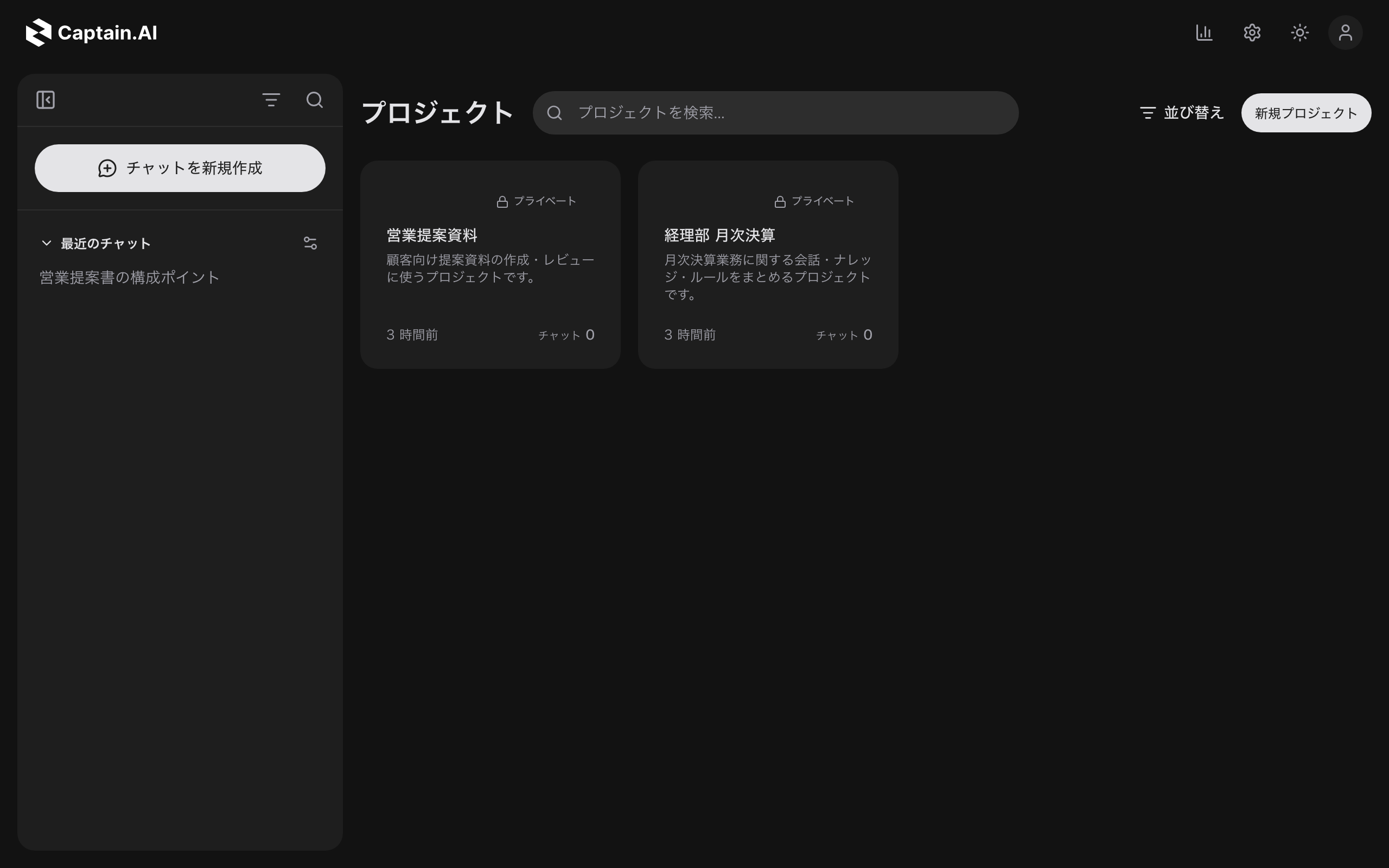
- Find the project you need with search ("Search projects...") and sorting (by last updated, descending / ascending)
- Each card shows a visibility badge, description, last updated time, and chat count ("N chats")
- Create a project with the "New project" button
Visibility types
| Badge | Meaning |
|---|---|
| Private | Only the creator can view and use the project |
| Members | Shared with invited members or within specific groups |
| Org-wide | All members of the organization can view and use the project |
Creating a project
- Click "New project" on the list page
- Enter the project name (required), description, and visibility
- If you chose "Member sharing" as the visibility, continue to the "Sharing settings" step to add users and groups and set each one's permission (the default when added is "Use")
- Click "Create project"
Note: Only app administrators can choose "Org-wide".
Project detail page
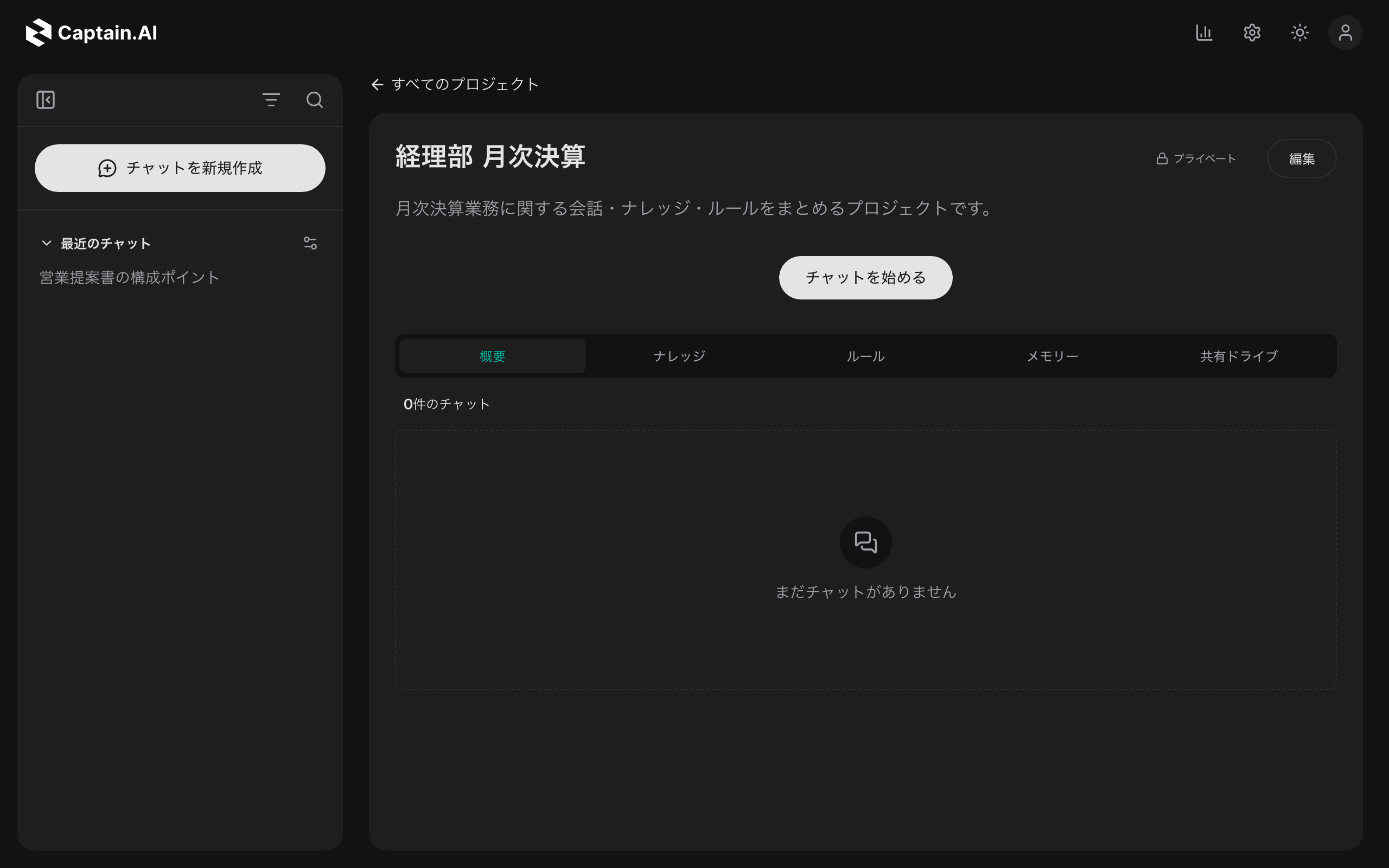
When you open a project, a "Start a chat" button appears in the center along with the following tabs.
| Tab | Contents |
|---|---|
| Overview | List of chats in the project (both regular chats and worker chats) |
| Knowledge | Manage documents and data linked to the project |
| Rules | Instructions prepended to every chat in the project |
| Memory | Memories extracted and saved from conversations in the project |
| Shared Drive | File space shared among members (see Library and Shared Drive) |
A dot next to a tab name indicates that the feature is "active" (knowledge connected, rules present, memory enabled).
Overview (chat list)
- Chats in the project are listed in order of last update. Worker chats show the job's icon; regular chats show the model in use
- From each row's menu you can Rename / Share / Remove from project / Delete (the available actions depend on whether the chat is yours and on your permission in the project)
Knowledge
Manage the documents and data you want the AI to reference in the project's chats.
- Use "Create knowledge" to create a knowledge container and upload files
- "Connect" the knowledge you created, and the AI will answer based on its contents in this project's chats
- When it is no longer needed, you can "Disconnect" it
Simply creating knowledge does not make it referenced. A warning is shown if you forget the "Connect" step.
Rules
Write instructions applied to every chat in the project (e.g., "You are the monthly closing assistant for the accounting department."). Describe the tone and operational rules you want to standardize across the team, then click "Save".
Memory
Manage memories automatically extracted from conversations in the project, as well as manually added ones ("Add memory").
- Each memory has a type (Episodic / Semantic / Procedural) and a priority (Low to Highest); higher-priority memories are referenced preferentially when answering
- Open "Memory settings" from the settings button to toggle the project's memory on / off and choose whether personal memory is also referenced
Members and permissions
The right side of the project detail page shows the list of participating users and groups (hidden for private projects).
Permission types
| Permission | What it allows |
|---|---|
| View | View chats and the drive |
| Use | In addition to viewing, add and delete files in the shared drive |
| Edit | Create and move chats; edit knowledge, rules, and memory; change project settings |
| Admin | In addition to Edit, add members and groups and change permissions |
- Add members and change permissions from "Add / edit users" / "Add / edit groups" (admin permission required)
- You cannot grant a permission higher than your own. You also cannot remove yourself or the last group you belong to that grants your access
- For users with "View" or "Use" permission, the "Start a chat" button is disabled and the message "Edit permission is required to start a chat in this project." is shown
Permissions in org-wide projects
In projects with "Org-wide" visibility, all members of the organization have "Edit" permission by default.
- Only the project's admins can add members and groups or change permissions
- Individual settings can only raise a permission to "Admin" (the list heading is "Users and groups with individually granted project permissions")
Changing visibility
You can change a project's visibility from "Edit". Changes that narrow the scope have restrictions and confirmations.
- Changing from "Org-wide" to "Member sharing" and changing to "Private" can be done only by the project owner
- Publishing as "Org-wide" requires both app administrator permission and project admin permission
- When narrowing the scope, you must check a confirmation acknowledging that some members will lose access. Changing to Private removes all configured sharing
Moving chats in and out of projects
Starting a new chat in a project
- Start from "Start a chat" on the project detail page, or from the pencil icon (new chat) on the project's row in the sidebar
- You can also choose a project (or "Personal (no Project)") before sending, from "Project" in the "+" menu of the chat input field
Moving an existing chat into a project
Drag and drop a conversation from the sidebar onto a project row or a project card in the list.
Note: If the conversation has manual sharing settings, a confirmation "Add to project?" is shown. Once added, manual sharing is removed and overridden by the project's sharing settings. Shared chats (ones you do not own) cannot be moved.
Removing from a project
Choose "Remove from project" from the conversation row's menu. People who had access via the project will no longer be able to view it (access for people you shared with manually is preserved).
Tip: From the gear icon on "Recent Chats" in the sidebar, you can toggle the display setting "Include project chats in Recent Chats".
For administrators
- Organization administrators and project owners can list, edit, and delete projects from the gear icon → "Settings" → "Shared Projects" → "Projects"
- Deleting a project keeps its conversations, but they are detached from the project and all sharing settings are removed
- Environment variables used by all jobs under a project can be configured on the
/projects/<project ID>/env-varspage (Edit permission required)