Deep Research
Overview
Deep Research is a feature where Captain.AI automatically works through the Plan → Research → Synthesize → Critique → Additional Research phases on a given topic and compiles the results into a single report.
It is suited to in-depth investigations that do not fit into a one-off chat, such as comparative studies, market research, due diligence, hiring research, and competitive analysis.
Research runs in the background, so once it starts you can work on other things while waiting for the results.
Note: Deep Research may be disabled by your organization's settings (an administrator enables it under "Features & Tools").
Starting Deep Research
- Click the "+" button to the left of the chat input box and select "Deep Research" from the menu
- A "Deep Research" chip appears below the input box, and Deep Research mode is enabled
- Type what you want to research into the input box (e.g., compare the AI strategies of 3 competitors)
- Send the message to start the research; a progress card appears in the conversation
- If you start from a new chat, a conversation is created and you are taken to its page
- To exit the mode, click the "x" on the chip
Changing the research settings
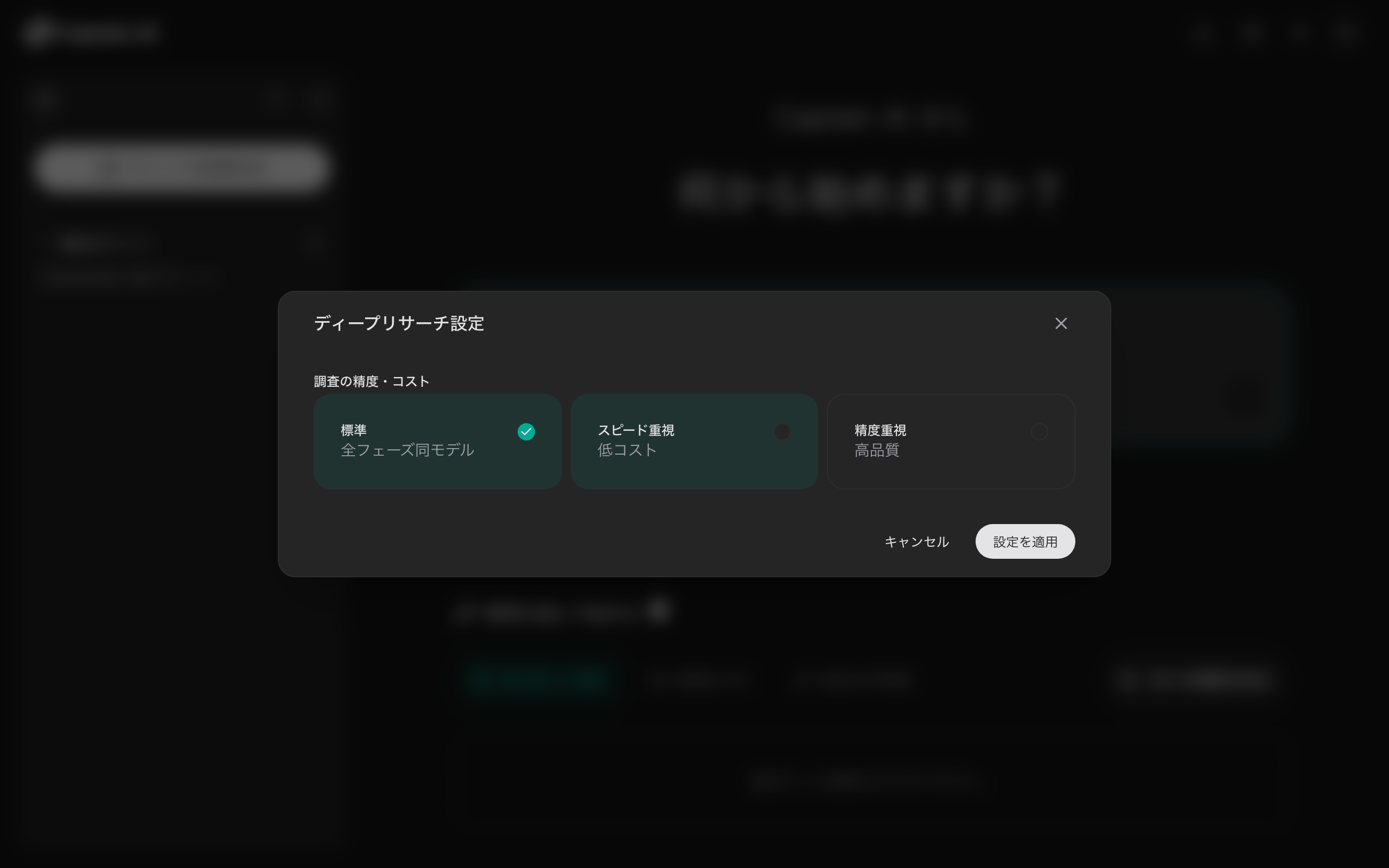
Click the "Deep Research" chip itself below the input box to open the "Deep Research Settings" modal.
| Setting | Description |
|---|---|
| Accuracy & cost | Choose from "Standard" (same model for all phases) / "Speed" (lower cost) / "Accuracy" (higher quality) |
| Narrow the research focus | Shown only when "Accuracy" is selected. Lets you choose a business template (see below) |
Confirm with "Apply settings".
The conversation history (recent exchanges) is always carried over as context for the research (there is no setting for this).
Business Templates
When researching with "Accuracy", you can select a business template that matches the type of investigation. Choosing a template changes the aspects the research is guaranteed to cover.
Templates provided by default:
| Template | Purpose |
|---|---|
| General | Default prompt covering broad research requests |
| Competitive | Covers products / pricing / customers / hiring signals / strategy |
| Hiring research | Talent pool / comp benchmarks / competitor hiring / tech trends from public info |
| Investment | Forces coverage of market size / financials / risks / valuation |
For administrators: Templates can be added, edited, and reordered from the "Features & Tools" → "Deep Research" tab in the settings modal (requires enabling the early-release feature "Deep Research template management").
Checking Progress
Research progress is shown in real time on the progress card in the conversation.
- The status (Running / Completed / Failed / Timed out / Cancelled) is shown at the top of the card
- The phase bar shows progress through Plan → Research → Synthesize → Critique → Additional Research → Done
- Expand "Sub-questions" and "Sources collected" to see the breakdown of the research
- While running, you can cancel the research with the "Stop" button
List view
On the /deep-research page, you can review your past research in one place.
- Use "Filter by status" to filter by All / Running / Completed / Failed
- Click a research entry to view its details and results
Viewing the Results
When the research completes, expand "Final report" on the progress card to view the report.
- The report is generated in Markdown format with citations
- You can export it in Markdown / PDF / docx / pptx formats (via the buttons in the report section)
- Use "Copy result" to copy the full report
- If the research failed, use "Re-run" to restart it from the same request
Tip: For large files, generating and downloading the PDF may take a few minutes.
Using the Results in the Rest of the Conversation
A completed report is automatically carried over as context to subsequent messages in the same conversation. You can directly ask follow-up questions based on the report, or request processing such as summarization or translation.