Administrator Settings (Settings Modal)
Overview
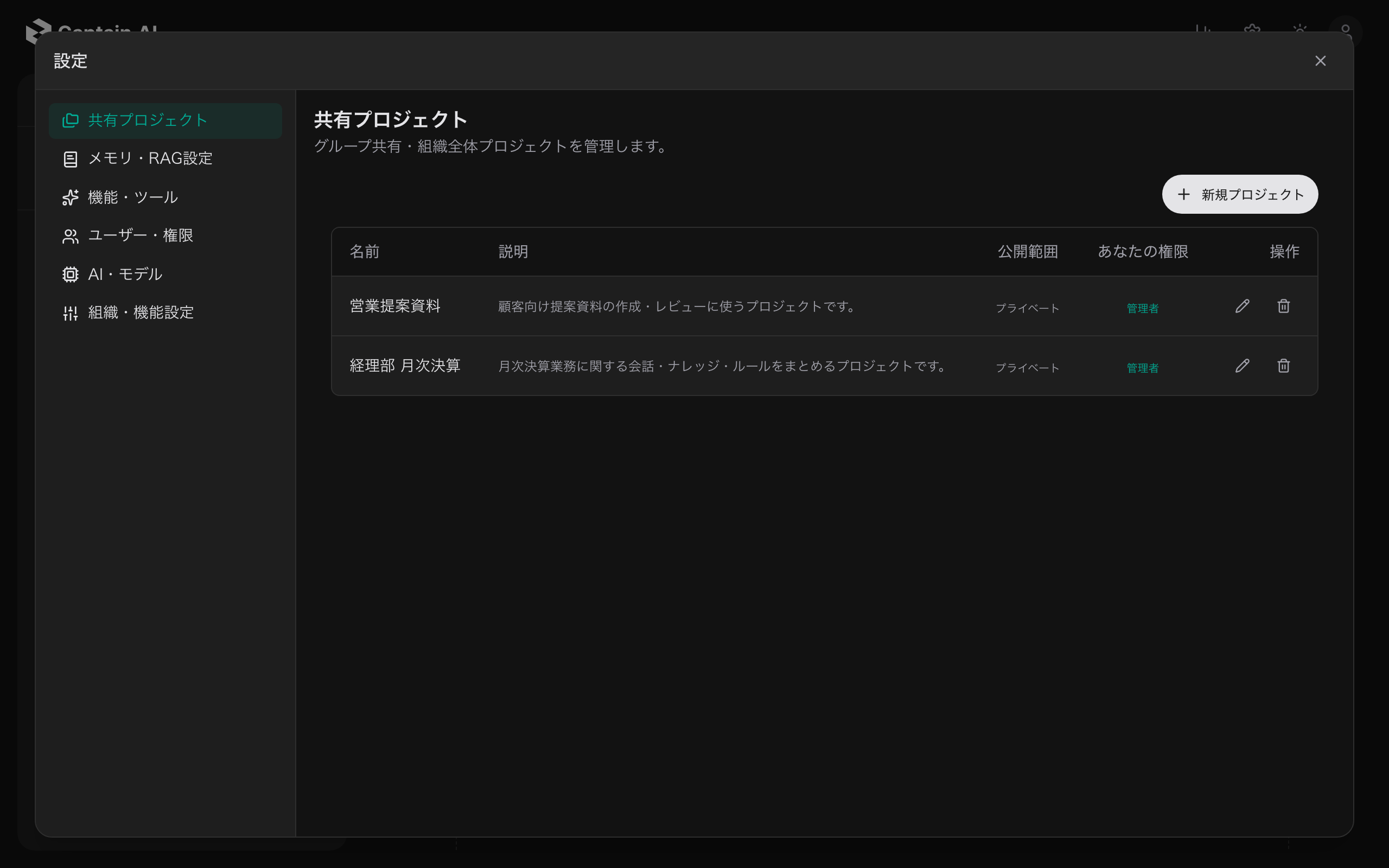
The various administrator settings are gathered in the settings modal. Open it from the gear icon at the right end of the header, then navigate to the setting you need with the category menu on the left and the tabs at the top.
Note: The gear icon is shown only to users who hold at least one of the following roles: organization administrator, group owner, or project owner. The categories and tabs you see vary by role.
How to Open
- Click the gear icon at the right end of the header
- Choose "Settings" from the menu to open the settings modal
Besides the settings modal, the gear menu shows the following items (for organization administrators who can use agent chat).
| Menu item | Destination |
|---|---|
| Settings | Settings modal |
| Workers & Skills | Worker management screen (see Worker Management) |
| Automation | Job (agent) management screen |
Tip: The setting currently open in the modal is reflected in the URL's
?section=parameter. Share the URL to open the same settings tab directly.
Categories
The settings modal consists of the following categories. When preview features (described below) are disabled, some categories and tabs are not shown.
| Category | Tabs | Description |
|---|---|---|
| Shared Projects | Projects | Manage group-shared and organization-wide projects |
| Memory & RAG Settings | Organization Memory / Search & Embedding (RAG) / Enable Features | Settings for memory shared across the organization and search (RAG) |
| Features & Tools | Deep Research / Image Generation / Enable Features | Settings for AI features such as Deep Research and image generation |
| Worker Usage | Quotas & Alerts / Cost Approvals | Worker usage limits and approval flows (preview) |
| External Integrations | External Integrations | Manage external connections such as Slack / GitHub (preview) |
| Users & Permissions | Users / Groups / New Member Defaults / Roles & Permissions / SSO / SCIM | Manage members and permissions |
| AI & Models | Models / System LLM / Model Descriptions / External Tools (MCP) / Voice Input / API Keys | AI models to use and related settings |
| Organization & Features | Chat Features / User Display / Agent Chat / Brand Logo / Preview Releases | Organization-wide feature and display settings |
| Group Management | My Groups | Manage groups you own (shown to group owners who are not organization administrators) |
Organization knowledge itself is managed from each project's "Knowledge" tab (the description of the "Memory & RAG Settings" category also points there).
What the Main Categories Do
Users & Permissions
Invite users, bulk-create them via CSV, edit them, and manage groups. See User Management and Group Management for details.
Organization & Features
Controls organization-wide feature toggles and display.
- Chat Features: toggle built-in tools (web search / web fetch / code execution) on and off
- User Display: control the visibility of user-side UI elements such as the credit usage bar, the Progress and Library sections, and session references
- Agent Chat: show agent chat to all users, or allow only specific groups
- Brand Logo: upload your organization's logo
- Preview Releases: enable preview features (described below)
AI & Models
Manage the default LLM models allowed for users, the system LLM used for behind-the-scenes processing, LLM provider API keys, and more.
Preview Releases
Features that have not officially launched yet can be enabled per organization on the "Organization & Features" → "Preview Releases" tab.
- Enabling a feature reveals the corresponding settings tabs and user-side features (tabs carry a "Preview" badge)
- Features left disabled are hidden, including their categories and tabs
- Preview features may change or be discontinued without prior notice
Main toggles and the settings they enable:
| Toggle | Settings enabled |
|---|---|
| Cost management | "Worker Usage" category (Quotas & Alerts / Cost Approvals) |
| External connectors | "External Integrations" category |
| Enterprise auth | "Users & Permissions" → "Roles & Permissions", "SSO / SCIM" |
| MCP Servers | "AI & Models" → "External Tools (MCP)" |
| Deep Research Template Management | "Features & Tools" → "Deep Research" |
Note: Preview features may not be intended for production use. We recommend trialing and evaluating them first.